Instagram Live: How to Plan, Host and Repurpose a Live Stream
Introduction: Why Instagram Live Still Matters
Instagram Live lets you talk with your audience in real time, with no edit to hide behind. That rawness is the point, because viewers can ask questions and get answers on the spot.
Many creators avoid going live because it feels risky. However, a simple plan removes most of the fear, and one stream can feed a week of short clips. Platform limits, eligibility and features change often, so this guide stays general and points you to Instagram's own help pages for specifics. It covers why to go live, how to plan a run sheet, inviting a guest, moderation, what to do afterward and how to measure it.
Why Go Live
What Instagram Live Does Best
A live stream builds trust faster than polished content, because people see how you think and respond. Therefore, it suits question sessions, product demos, launches and behind-the-scenes moments. In contrast, a Reel is better for reaching strangers. The Pew Research Center tracks how US adults use each platform.
It Rewards Your Existing Audience
Instagram Live viewers are usually people who already follow you. Consequently, a stream deepens a relationship more than it grows an account. For example, a small group of regular viewers can become your most loyal customers.
It Creates Raw Material
An hour of conversation contains many short, quotable moments. Moreover, those moments become clips, captions and ideas for future posts. Our guide to TikTok Live shows how the same thinking applies on another platform.
Planning a Run Sheet
Choose One Clear Topic
Pick a single promise for the stream, such as answering questions about one product or teaching one skill. Therefore, viewers know why they should stay. Additionally, a narrow topic makes the title easy to write.
Write a Simple Run Sheet
List the opening, three or four talking points, a question break and the closing call to action. Similarly, note a rough time for each part. A short-form video script approach works well for the first thirty seconds.
Promote It in Advance
Tell followers the date and time several days ahead, then remind them on the day. For example, use Stories countdowns and a feed post. Our guide to Instagram Stories strategy covers the reminder sequence.
Test Your Setup
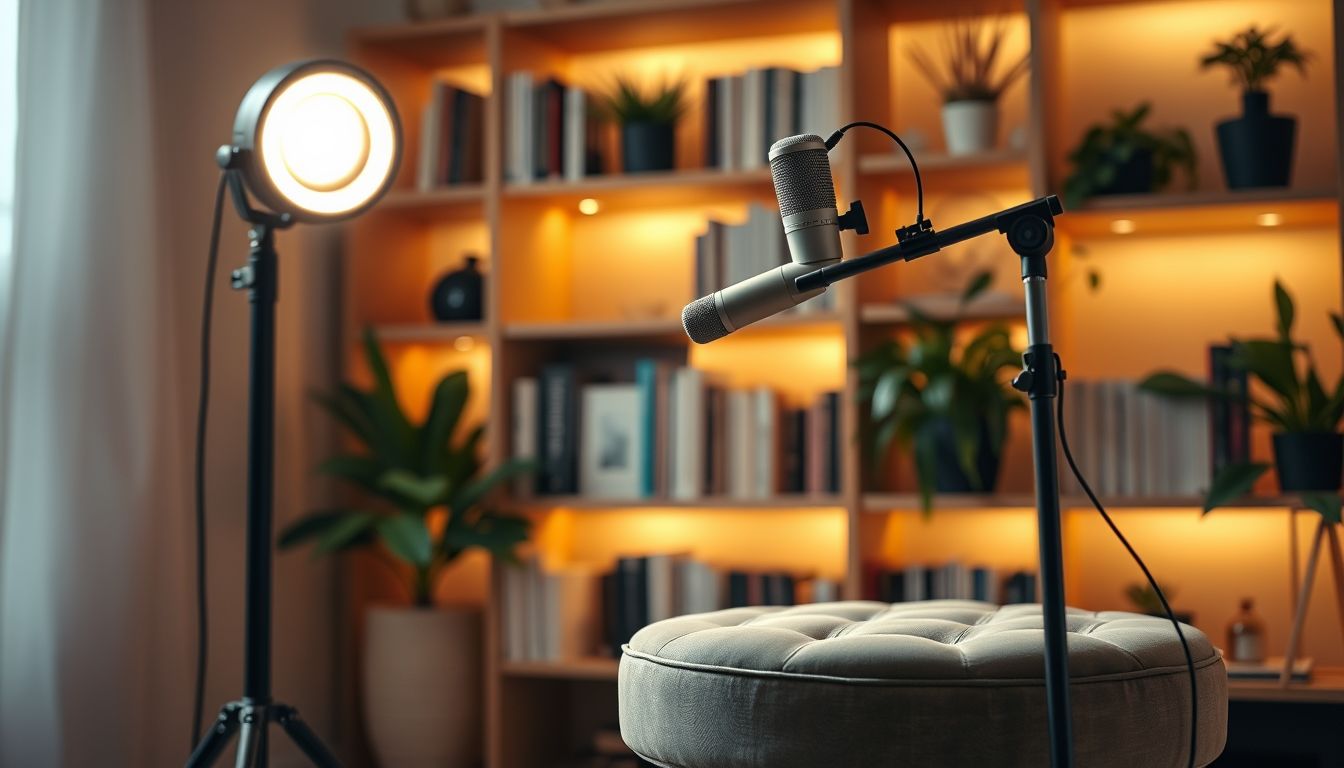
Check your light, sound, framing and connection before you start. Furthermore, charge your phone and silence notifications. Instagram's Help Center explains the current options for practice or limited-audience streams, where available.
Inviting a Guest
Pick a Guest Who Fits
Choose someone whose audience overlaps with yours and who adds real knowledge. Consequently, both sets of followers get value. However, check the Help Center for current guest features and limits, because they vary and change.
Brief Them Properly
Share the topic, the run sheet and the questions in advance. Additionally, agree who opens, who closes and how long you will run. A short test call the day before prevents awkward technical surprises.
Disclose Paid Relationships
If a brand pays you or the guest, or supplies free products, viewers must be told clearly. The FTC endorsement guidance explains the US expectations. Therefore, say it out loud during the stream and repeat it for people who join late.
Extend the Partnership
Plan what you will both post afterward. For example, Instagram Collab posts can share a highlight clip across both profiles.
Moderation and Comment Controls
Set Controls Before You Start
Instagram offers tools to filter, limit or turn off comments, and the exact options change over time. Therefore, review the settings in the Help Center before every stream. Moreover, add your own list of words to hide if the app allows it.
Bring a Moderator
Ask a trusted colleague or friend to watch the comments. Consequently, you can focus on talking while they flag good questions and deal with trouble. Our guide to community management covers tone and escalation.
Handle Trolls Calmly
Do not argue on camera. Instead, remove the comment, restrict or block the account and carry on. Furthermore, report serious abuse through the app.
Mind Music and Copyright
Background music can cause a stream to be muted or interrupted. Therefore, stream without copyrighted tracks unless you have the rights. The US Copyright Office explains the basics.
What to Do After the Stream
Save the Recording
Save or download the video when the stream ends, if the app offers it. However, saving options change, so check them before you go live. Additionally, keep your own notes of the best moments while they are fresh.
Clip It Into Reels
Cut the strongest answers into short vertical clips with a clear hook. Moreover, one stream can supply several Reels. Our guide on how to repurpose one video for every platform explains the workflow.
Add Captions
Live audio is rarely perfect, and many people watch without sound. Consequently, captions make clips easier to follow and more accessible. The W3C's guidance on captions explains why they matter.
Measuring Results
Look Beyond Peak Viewers
Peak viewers show interest, but comments, questions and time watched show engagement. Therefore, note all of them after each stream. Insights features vary by account type, so see the Help Center for what you can access.
Track Actions
Count what people did next, such as profile visits, link clicks, messages and sales. For example, a tagged link from Google's Campaign URL Builder shows visits that came from the stream. Additionally, the Google Analytics Help Center explains how to read those visits.
Compare Streams Over Time
One Instagram Live proves little. However, a simple log of topic, day, time and results reveals patterns after a few sessions. Consequently, you learn which formats your audience actually shows up for.
A Practical Example
The Situation
Consider an illustrative skincare creator in Austin who posted Reels regularly but rarely spoke with followers directly.
The Change
She scheduled a weekly question session with a one-page run sheet and a friend moderating comments. Furthermore, she saved each stream and cut the best answers into Reels.
The Result
Regular viewers began returning each week, and the clips gave her a steady supply of posts between streams. Results like this are illustrative and depend on niche, audience and consistency. Nevertheless, a planned stream with a clear topic is far easier to host and reuse.
How Vairova Can Help
Vairova researches trends, generates short-form videos and auto-posts them to TikTok and Instagram daily. Consequently, your feed stays active between streams while you focus on showing up live. Start your free Vairova trial, or compare plans on our pricing page.
Conclusion
Instagram Live works when you plan it like a small show. Therefore, choose one topic, write a run sheet, set comment controls and bring a moderator. Above all, save the recording and clip it into Reels so the effort keeps paying. If you want consistent posts between streams without the extra work, start a free Vairova trial.
Frequently Asked Questions
Q: How do I start an Instagram Live?
A: Open the camera in the app, choose the live option, add a title and begin. Furthermore, check Instagram's Help Center first, because Instagram Live features and eligibility change.
Q: How long should a live stream be?
A: Long enough to cover your topic and answer questions, without padding. However, time limits vary, so confirm the current maximum in the Help Center.
Q: Can I invite a guest to my stream?
A: Yes, Instagram supports guests, although the number and method can change. Therefore, test the guest feature with your co-host before the day.
Q: How do I stop abusive comments?
A: Use the comment filters and controls in your settings, and ask someone to moderate. Additionally, restrict, block and report accounts that break the rules.
Q: Can I reuse my stream afterward?
A: Yes, save the recording where the app allows and cut the best moments into Reels. Moreover, add captions so clips work without sound.
Q: Do I need to disclose sponsors during a live stream?
A: Yes, in the US the FTC expects clear disclosure of paid or gifted relationships. Consequently, say it out loud and repeat it during the stream.
Disclaimer
This article offers general marketing guidance current as of October 2026 and is not legal advice. The Austin creator example is illustrative. Instagram's limits, eligibility and features change, as do advertising and copyright rules, so confirm current details with Instagram's Help Center, the FTC and the US Copyright Office. No approach guarantees results.